
Overview
While we believe it is best practice to show the customer a comprehensive list of all of the upcharge items that will be added to their cart based on their Options selections, we do realize that some may prefer to hide this box and let them move to the cart page where this information is also visible.
If you follow the quick tutorial below, you can hide the "Additional Added" box in no time!
Tutorial
Step 1: Locate your Stylesheet
- Sign into your Shopify Store's Admin.
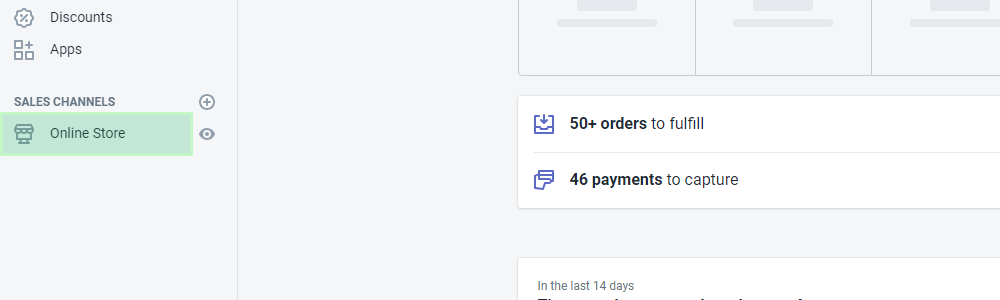
- In the menu on the left hand side, click on the "Online Store" link.
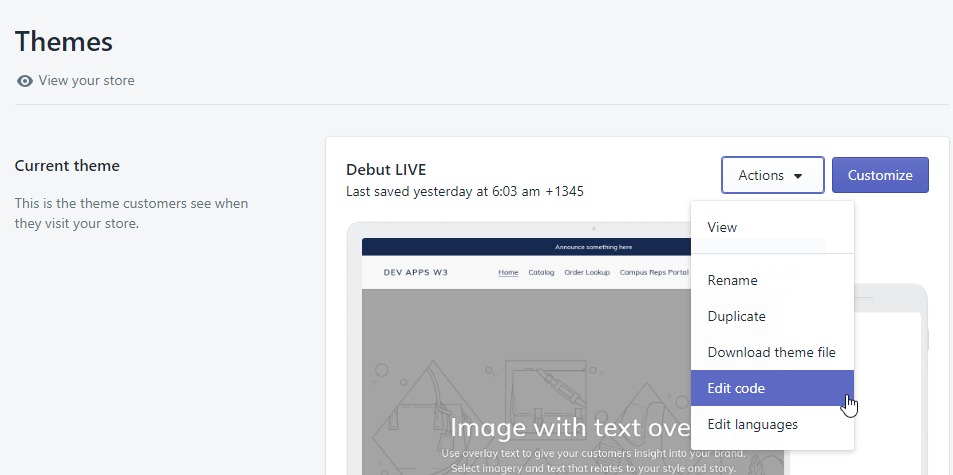
- From here, you will see the list of your themes. Click on the "Actions" button next to the theme you wish to modify, (The top one is the live theme), and select "Edit Code"
- Take a look at the list on the left hand side. These are all of the files that make your theme work! They're separated into sections, or "folders", and we are looking for the "Assets" folder.
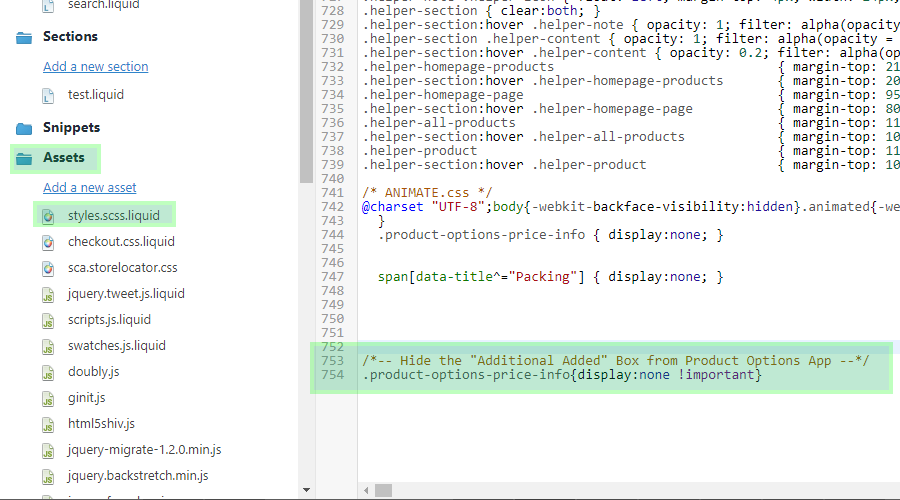
- Scroll down in that left menu until you see the "Assets" folder, and give it a click. It should then expand so that you can see all of your Stylesheets, Javascript files, and most likely a few images.
- We are only looking at the files that end in ".scss.liquid" These are your Stylesheets. (Stylesheets can also end in ".CSS" but the ones that we will be using today likely will not)
- Typically your main stylesheets will be named one of the following: theme.scss.liquid, styles.scss.liquid, stylesheet.scss.liquid, or if none of those are present, you may have a timber.scss.liquid.
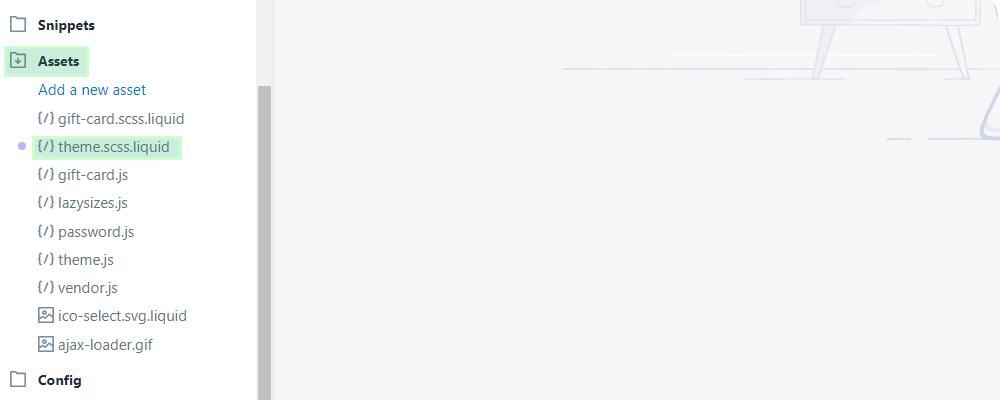
- I have listed them in order of importance, so if you have more than one of these, click the one that appears first in this list: theme.scss.liquid, styles.scss.liquid, stylesheet.scss.liquid, and only use timber.scss.liquid if none of the others are available.
Step 2: Paste The Snippet
- Once your Stylesheet is open, scroll to the VERY bottom of the file and paste the below snippet. It is always nice to comment your Stylesheets so that if you come back at a later date you will know exactly why and what was added last time. (I included a descriptive comment for you.
 /*-- Hide the "Additional Added" Box from Product Options App --*/
.product-options-price-info{display:none !important} - This is what Comments look like.
/*--This is a Comment--*/
Your Stylesheet should now have the snippet highlighted in green at the very bottom.
Step 3: Save!
- When you are done, click the "Save" button, and the box should no longer appear on your product pages!
If you have any trouble with this tutorial, or need any help, please feel free to email us at: support@w3trends.com